Tag Archive | Norwegian Farm Books

Working with the Norwegian Farmbooks and AI

My past process to get a translation of what a Norwegian farm book says about my ancestors and their farm was somewhat laborious. First I made a good scan of the page, then I used a Norwegian OCR program to get the text extracted, and finally I asked google to translate that resulting text. Often the result sounded stilted and certain words did not translate correctly, like farm (“pa”) would be garden. Click here for my past post about that process. 

Today I tried Claude AI on a few not so great photos of pages from my copy of the Etne-soga farmbooks for a distant relative and wow, just wow. Not only was the process much easier, just upload a photo, but the translation was way better and more informative.

Here is an excerpt from my exchange with Claude AI:
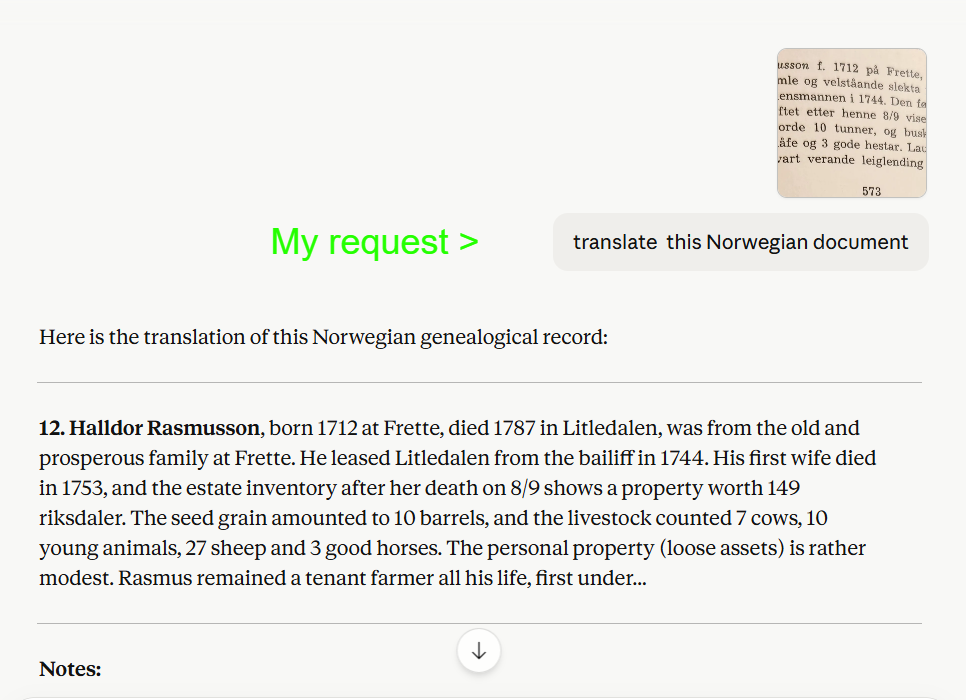
Green text is added to this exchange with Claude AI


When you click the down arrow it even explains the Norwegian abbreviations! This is what it told me.

Notes:

“f.” = født (born), “d.” = død (died)
“bygsla” = leased/rented farmland (a common tenure arrangement in old Norway)
“lensmannen” = the local bailiff/sheriff
“rdlr.” = riksdaler, the currency of the time
“Lausøyret” = movable personal property/chattels
“leiglending” = a tenant farmer who leased land rather than owning it

The text cuts off at the bottom of page 573 — there is more to the entry on the following page.

I am amazed that Claude knew what the document was (a Norwegian genealogical record) and could give me information like that about common abbreviations and words. Previously Google translate had used “built” for “bygsla” as well as other slight inaccuracies.

This was all free! I would be happy to pay a small subscription fee for such a terrific service.

I have also used Claude AI for handwritten German records. Some it did well. Others it found harder but it always told me why, discussing that horrible medieval German script.

AI is bringing in a wonderful new era for us family history researchers.
Translating Farm Books Using a Norwegian OCR program

NorwegianOCR
When I scan in documents I use a product called PaperPort for my Optical Character Reader (OCR – turns images of words into text that can be edited in a word processor) but it does not know about Norwegian characters.  So it has been a lot of work for me to clean up the result of a Norwegian scan in order to use Google Translate on it. Needless to say, I was delighted to read that there is an online OCR program for Norwegian!   Jim Bergquist, a fellow subscriber to the rootsweb Norway list, posted the step by step process to that group for translating farm book entries using this tool and he has given me permission to rephrase his method on this blog. Here it is:

  1. Crop the text part of your scanned image and save as a separate image file. Make sure to do a multi-column pages one column at a time.
  2. Go to http://www.i2ocr.com/free-online-norwegian-ocr . This is an online Optical Character Recognition tool. You don’t have to download or install any software.
  3. Instructions at the bottom tell you to:
    1. Click the “File” radio button. Press “Select Image”. Use the file box to navigater to where you put the image on your computer.
    2. Leave the language in Norwegian.
    3. Enter the two numbers or words separated by a space. These are used to prevent automated robots from using the site for hours.
    4. Press “Extract Text.”
  4. Three buttons will appear at the bottom of the screen and the extracted text will be in the left hand box (see example below).
    • Download, to put it on your own computer (a good choice).
    • Translate, I haven’t used – it may send it as-is to Google Translate. However, OCR usually requires some corrections to be made, so you should look at the result and correct it before trying to translate.
    • Edit in Google Docs, if you are familiar with working on documents in the cloud.
    • Of course you can just cut and paste the text in the left hand box over to your word processor instead of any of the above options, which is what I did.
  5. When you have corrected any OCR errors in the file, select the text and paste it into Google Translate.

Continue reading